
Automation Version 4 has been under development for almost two years. This release introduces a new generation
of software to our client base. Version 4 is not merely an upgrade; it is an entirely new application, written using the
latest Microsoft-supported code. To facilitate a smooth transition from Version 3 to Version 4, our development team
has integrated the user interface from Version 3 directly into the new software, eliminating the need for any
operational familiarization exercises.
Version 4 provides us with a state-of-the-art code base, which our developers will leverage over the coming
months to introduce additional features and functions aimed at enhancing the user experience.
Welcome to a new and exciting future – Automation Version 4 Premier Edition.
Please read these notes carefully before attempting installation. By following the instructions, the transition
from Version 3 to Version 4 should be seamless and without issue.
Are Version 3 & Version 4 databases compatible?
Yes, the database format in our initial release remains unchanged. However, when you first open Version 4, you will
be prompted to select your database. Please ensure that your master password is available, as it will be required. If you
have forgotten the password, kindly contact us prior to installation for assistance with resetting it.
Can I install Version 4 at any time?
Indeed, you may install Version 4 at any time. When running Version 3 (release 3.8.8), you will be prompted to open the
installation page. Simply click on the download link to place the install file in your downloads folder. To proceed
with installation, click on the file from your downloads folder and follow the on-screen prompts.
What are my options if I am running a local server?
Automation Version 4 requires you to install your database on the Microbase cloud server. The Premier edition does not
support local area networks. Before proceeding with the installation of Version 4, please click on the link provided and
follow the instructions in the downloaded document to complete the conversion process Local-Online Install
Once your data is hosted on our server, you may proceed with the installation of Version 4.
How do I transfer essential local V3 data such as letters, program settings and PDFs to Version 4?
When opening Version 4 for the first time you will be prompted to move any critical files from Version 3 to the
Version 4 folder, we strongly suggest you accept this option although you do have an alternate that can be used after installation.
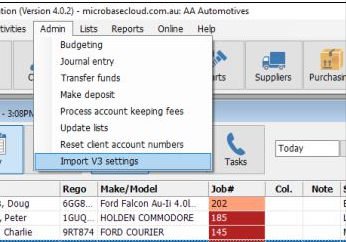
Selecting the Admin menu, highlighting and clicking on the Import V3 settings option will transfer the files.
Please note: for this option to function either from the install or program options V3 must have been installed on the same machine.
Do I have to install Version 4 on all machines?
Yes, it is necessary to install Version 4 on all terminals. Additionally, you will need to execute the file transfer option on
each machine to ensure proper functionality.
What are the main differences between Version 3 and Version 4?
Upon upgrading to Version 4, you will notice a new application layout that adjusts according to your computer’s settings.
Although the screens appear different, the functionality remains identical to Version 3. The icons have been redesigned;
however, the controls should be easily recognizable.
There are a few new features in Version 4:
Multiple Forms: You can now open multiple instances of the same form, such as having several job cards open
simultaneously. You can easily navigate between them using the task-bar at the bottom of the screen.
New Reports Module: Version 4 introduces a new and improved reports module. Reports are now clearer, more
refined, and visually crisper.
64-bit Architecture: The software has been upgraded to a 64-bit application, which generally results in faster
and smoother performance compared to the previous version.
We hope these explanations have helped clarify the key differences between Version 3 and Version 4.
Click on the link provided at the bottom of this page. This action will download the setup.zip file to your downloads folder.
If prompted with a message asking whether you trust the file, please select the option to continue with the download.
Once the download is complete, the Automation4Setup.zip file will appear as the first file in your downloads folder.
To begin the installation, simply click on the file it will unzip then simply follow the on-screen prompts.
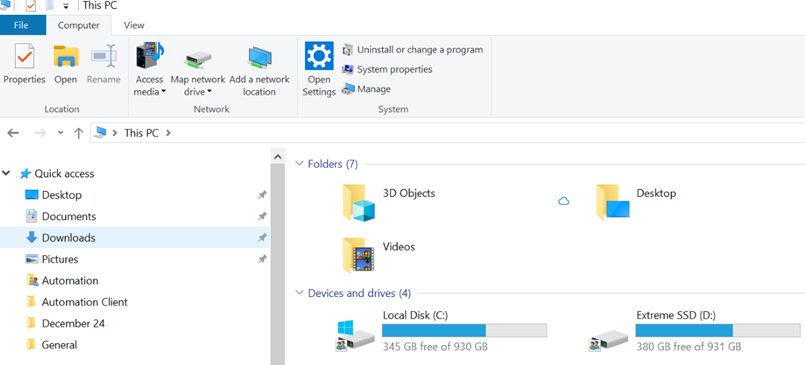
Alternatively, you may locate the Automation4Setup.zip via Windows File Explorer. Navigate to the Downloads
folder, select the most recent file (the last one you downloaded), and initiate the installation process.
Note: If the .NET Framework is already installed on your machine, the required files will not be reinstalled.
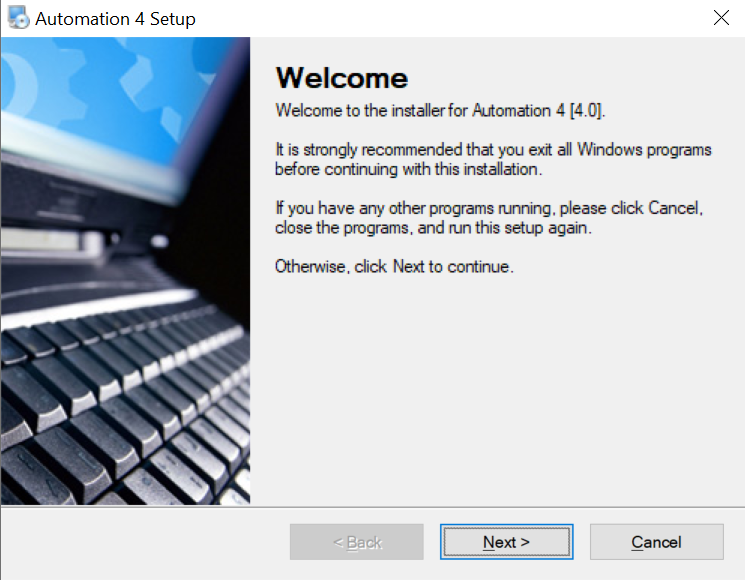
You will see a welcome screen, to begin the installation
select Next
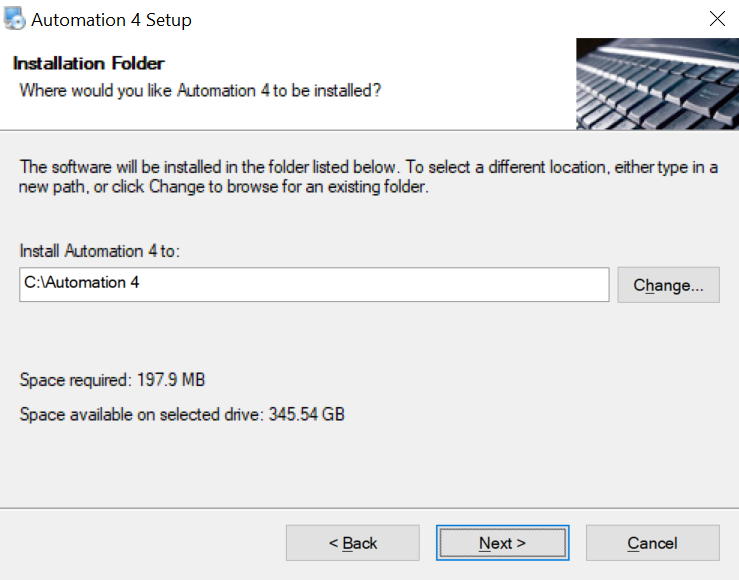
Accept the install path by
selecting Next
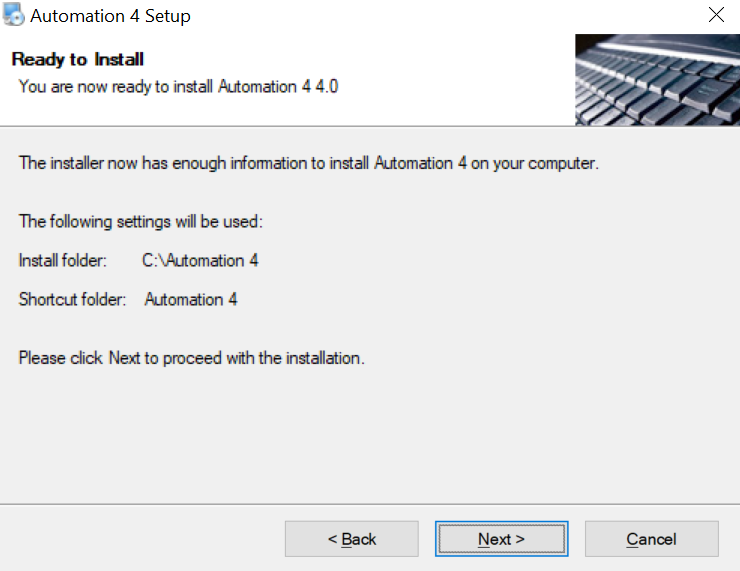
A confirmation screen is displayed, again to accept this
select Next
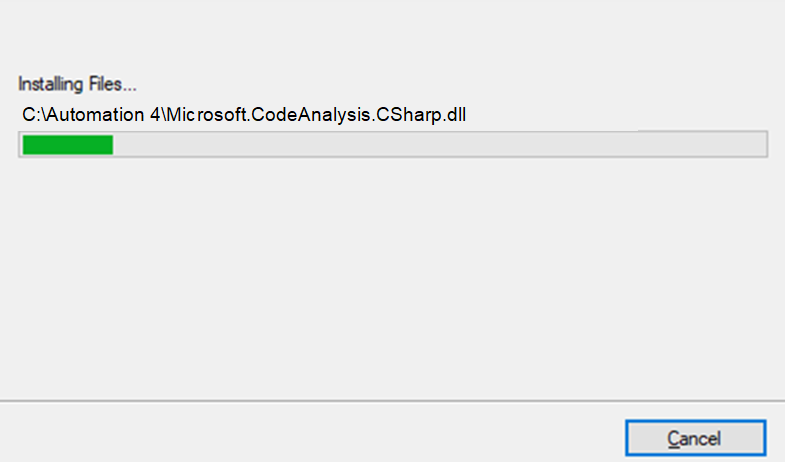
The files required to run Automation will install.
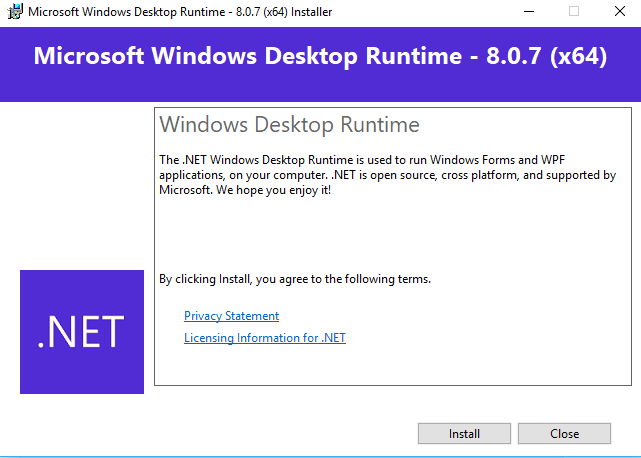
Automation runs in the Microsoft.Net environment so next
if you are prompted to install the framework, simply click on
the Install option.
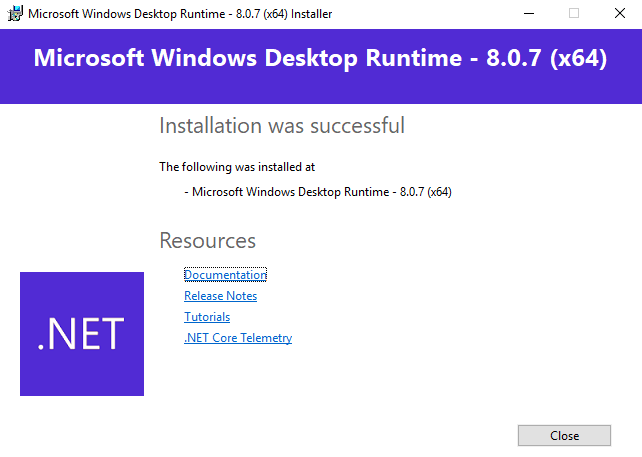
When the framework has finished loading the installation
will be confirmed, select Close to finish
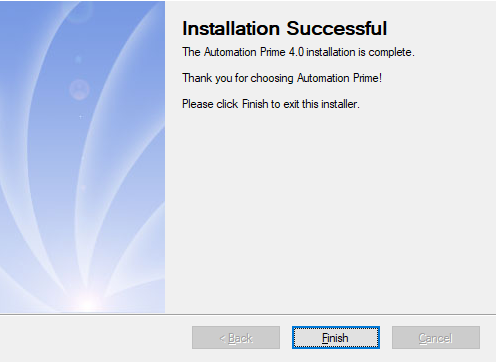
The final installation screen informs you that all files have been installed successfully, select Finish
Automation Premier is now installed.
To open double click on the new desktop icon below, you will see a splash screen while the various files are loaded, when
complete a list of databases stored on the microbasecloud.com.au server are displayed you need to type the first letter of
your business name or use the scroll bar to the right to locate your data. Highlight the entry and enter your master password
when prompted.

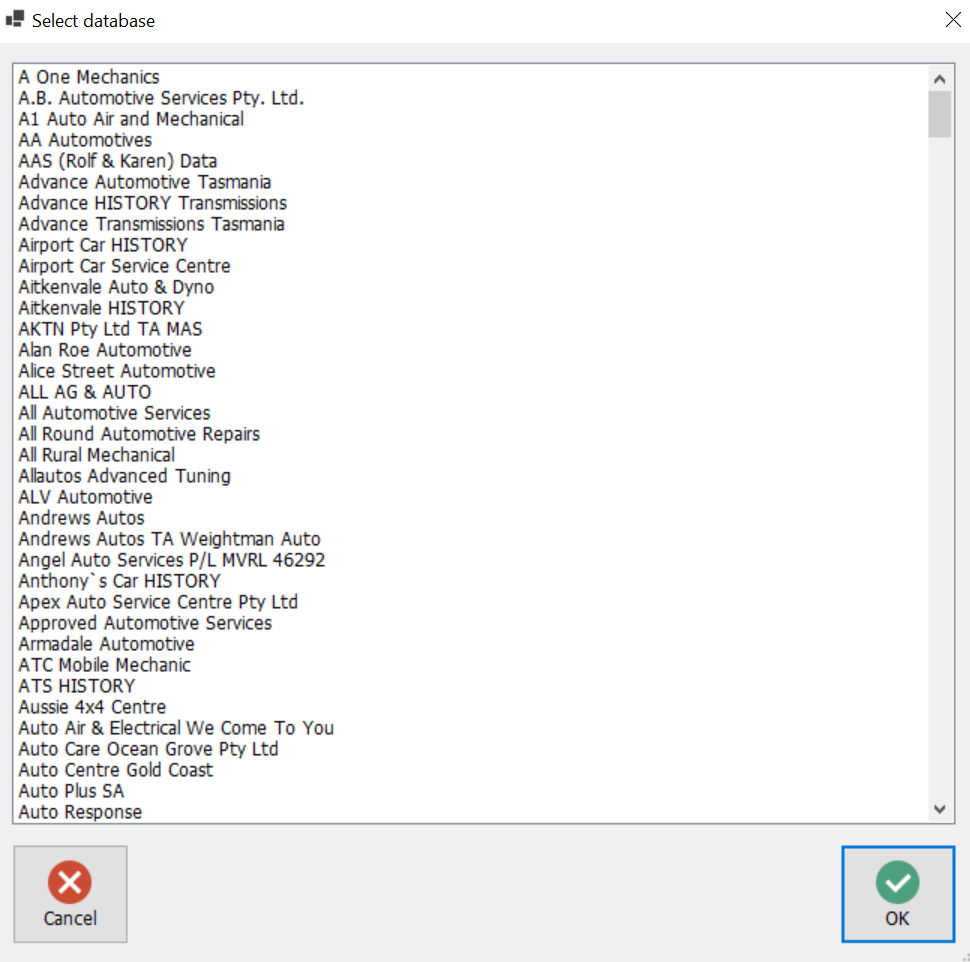
Your database will be uploaded by Microbase if you are a new site, for sites that have been using
Version 3 simply select the same database as you used with V3 online.
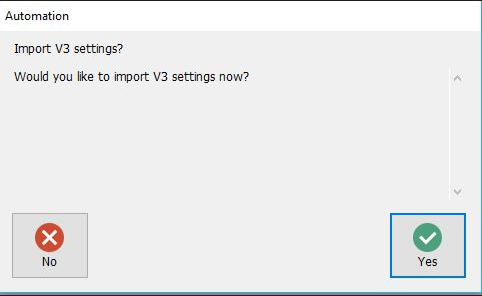
Next you need to import your V3 Settings. To assist, when opening for the first time, you will see this
message, select YES
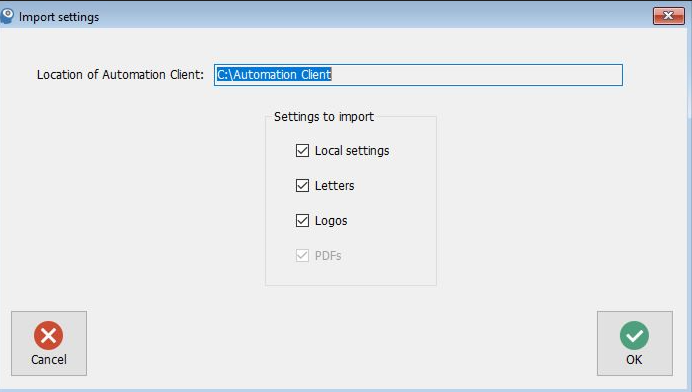
If you see this screen select all live options and click YES
The architecture of Automation Premier edition requires you to have the client loaded locally and
connected to a compatible database that is stored on the Microbase cloud server. You can access your
data from any machine with an internet connection that has Automation 4 loaded.
Your licenses constitute the number of open connections allowed at any one time, you can load
Automation onto multiple machines and be able to access your data as long as the number of live
connections do not exceed the registered licenses.
In addition to data storage Microbase provides virus protection, security and backup services, Automation
also allows a user to store backups locally by using the download option available from the online menu in Version 4
DO NOT UN-INSTALL VERSION 3 AT THIS STAGE
Please contact any of the following support staff:
Independent Locations: Peter Vincent …… Phone 0414 371 422 ….. Email …. peter@microbase.com.au
Repco Locations: Terry Richardson …… Phone 0424 578 110 ….. Email …. terry@microbase.com.au
General Support: Ross Hare …… Phone 0412 951 377 ….. Email …. ross@microbase.com.au
Below is your link to the install file for Automation 4 Premier Edition
https://www.microbase.com.au/guest/Automation4Setup.zip

|